 Design Guide
Design Guide
Design Guide
SYSAdmins can assign multiple long-term and ongoing tasks to Ragic AI, for example automatically checking form input, filling in fields, sending email notifications, or replying to emails. It can also analyze images and uploaded files to assist with tasks, for example, generating product descriptions from uploaded product images.
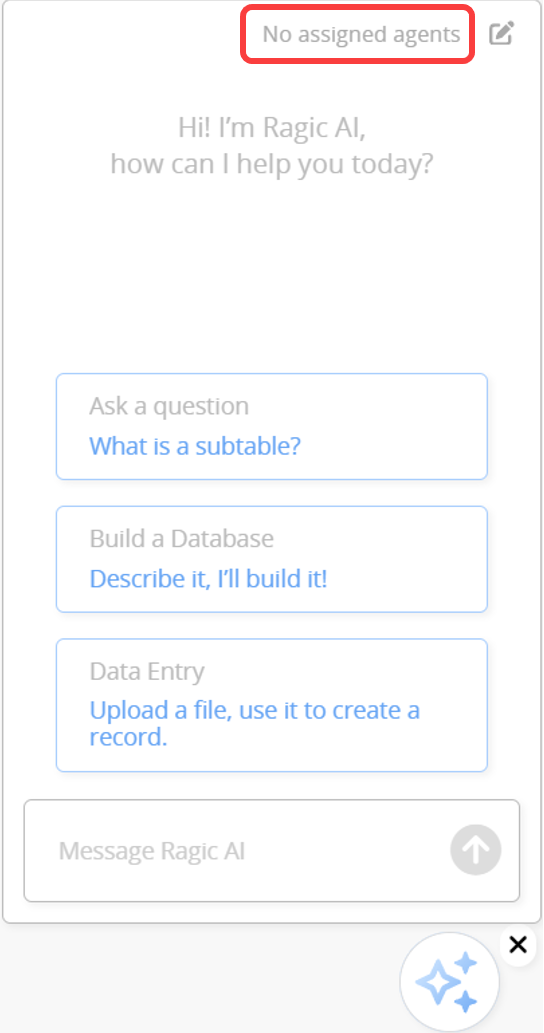
First, click "No assigned agents" in the upper right corner of the Ragic AI window.
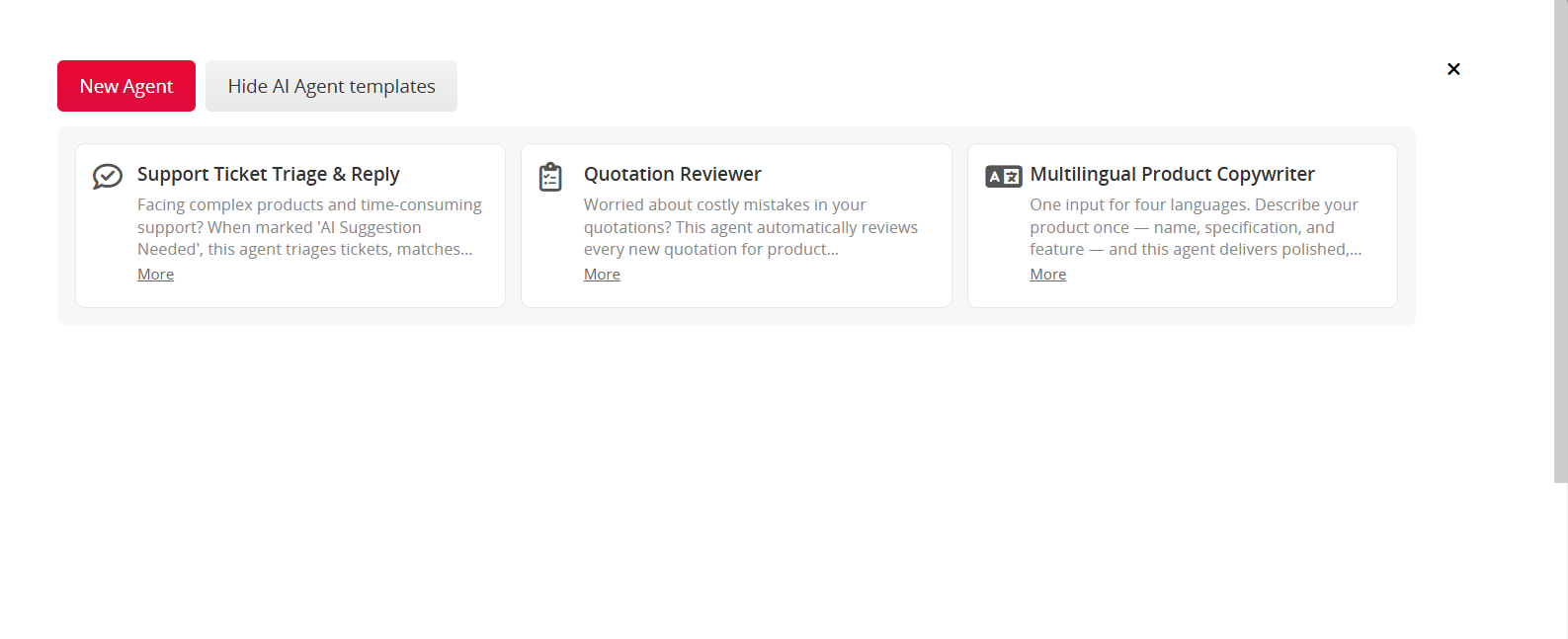
You can choose to create a new Agent or apply a template directly.
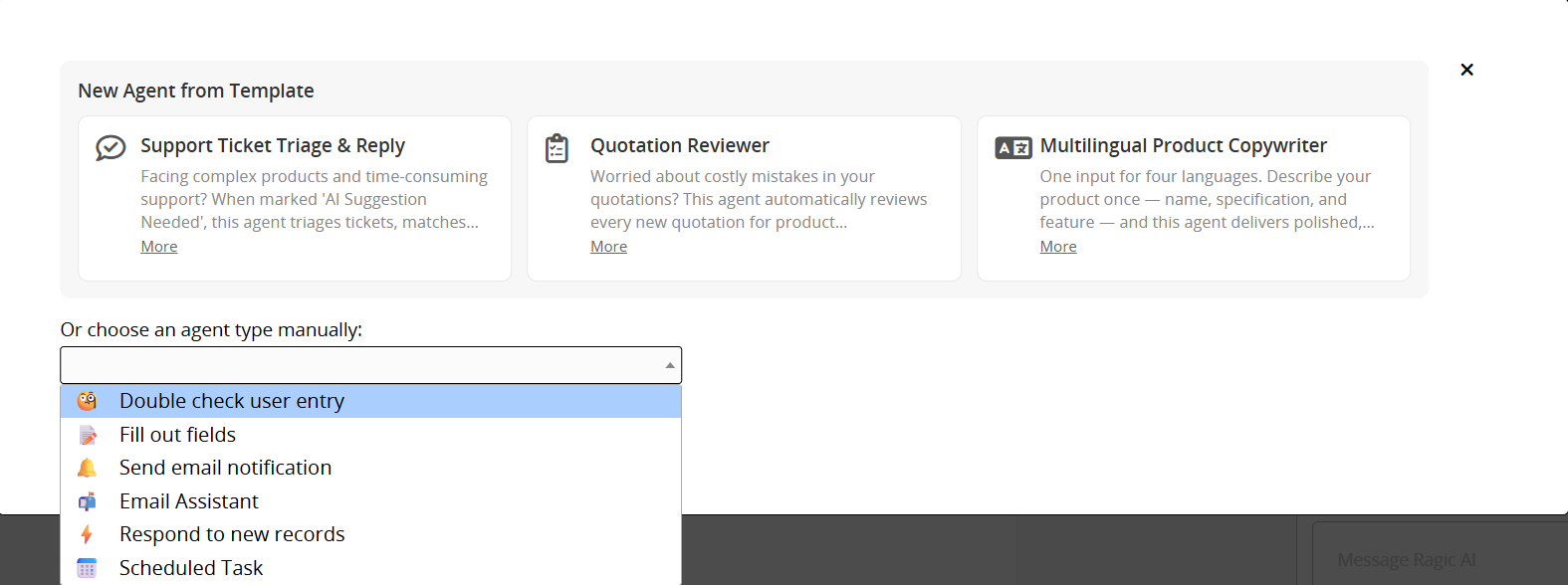
After clicking New Agent, select an Agent Type and configure the rule manually.
After saving, Ragic AI will automatically execute the agent according to the configured rules. You can also adjust additional settings as needed.
The following Agent Types are currently available:
Verify whether sheet contents meet specified conditions or contain errors or unexpected values. If the conditions are not met, Ragic AI can automatically leave a comment to notify the user.
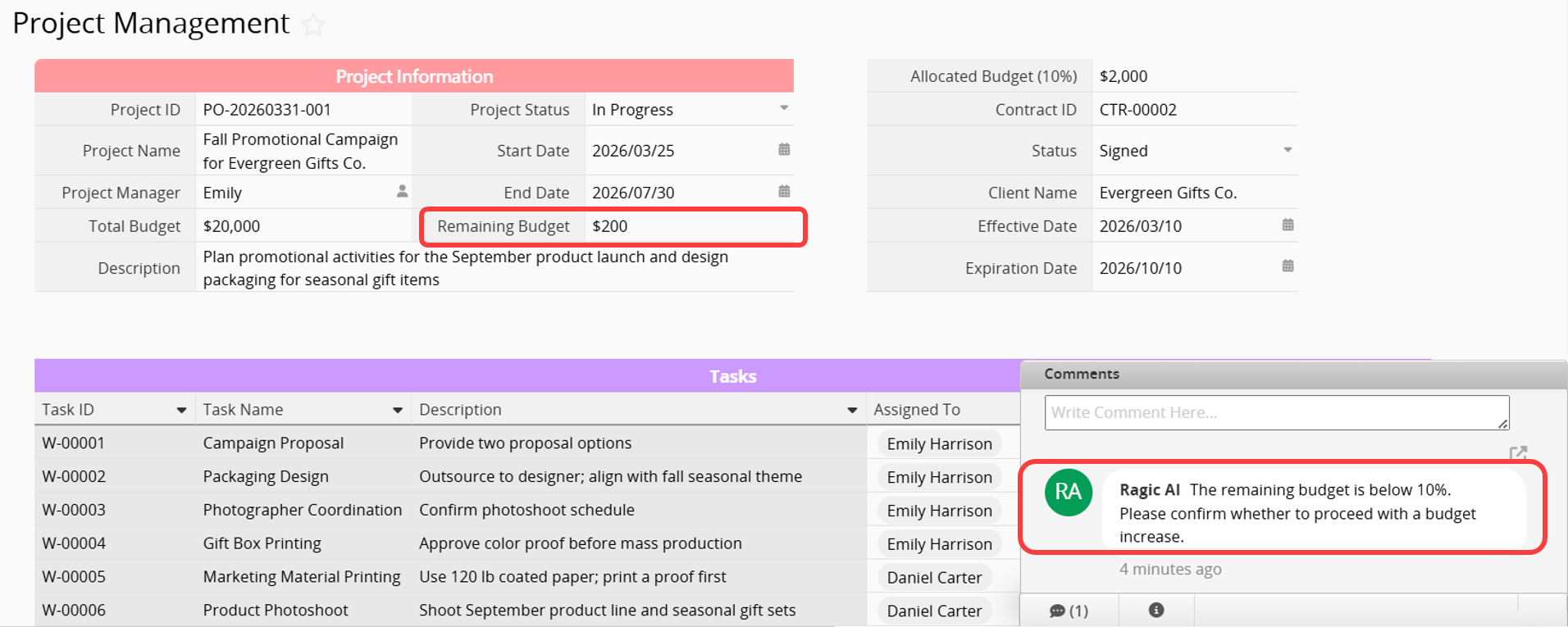
Example: Ask Ragic AI to check the "Remaining Budget" field in the "Project Management" sheet. When the remaining budget drops below 10% of the total budget, leave the following comment: "The remaining budget is below 10%. Please confirm whether to proceed with a budget increase."
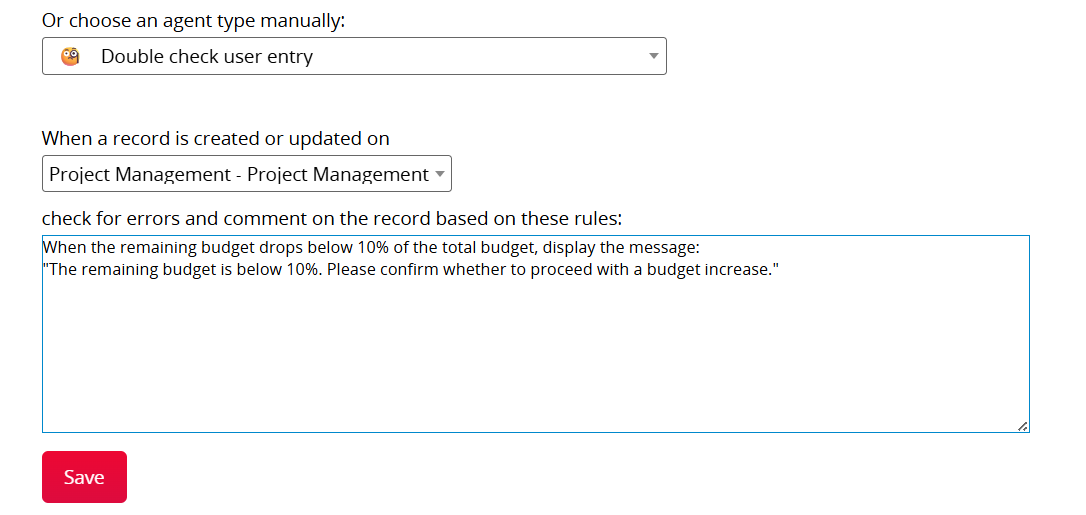
After saving, when the remaining budget drops below 10% of the total budget, Ragic AI will automatically leave a reminder comment.
Automatically populate a field based on existing field values, or fill in specified content according to defined conditions.
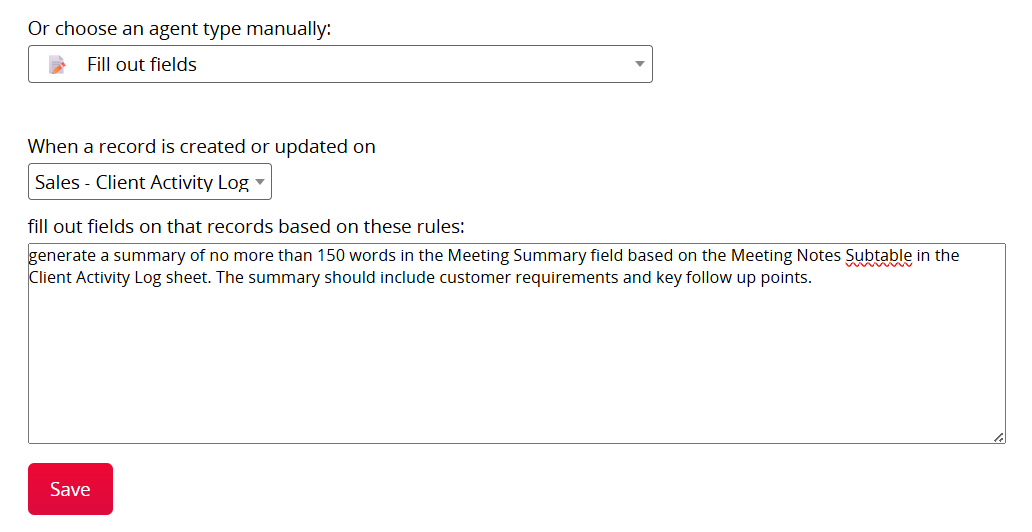
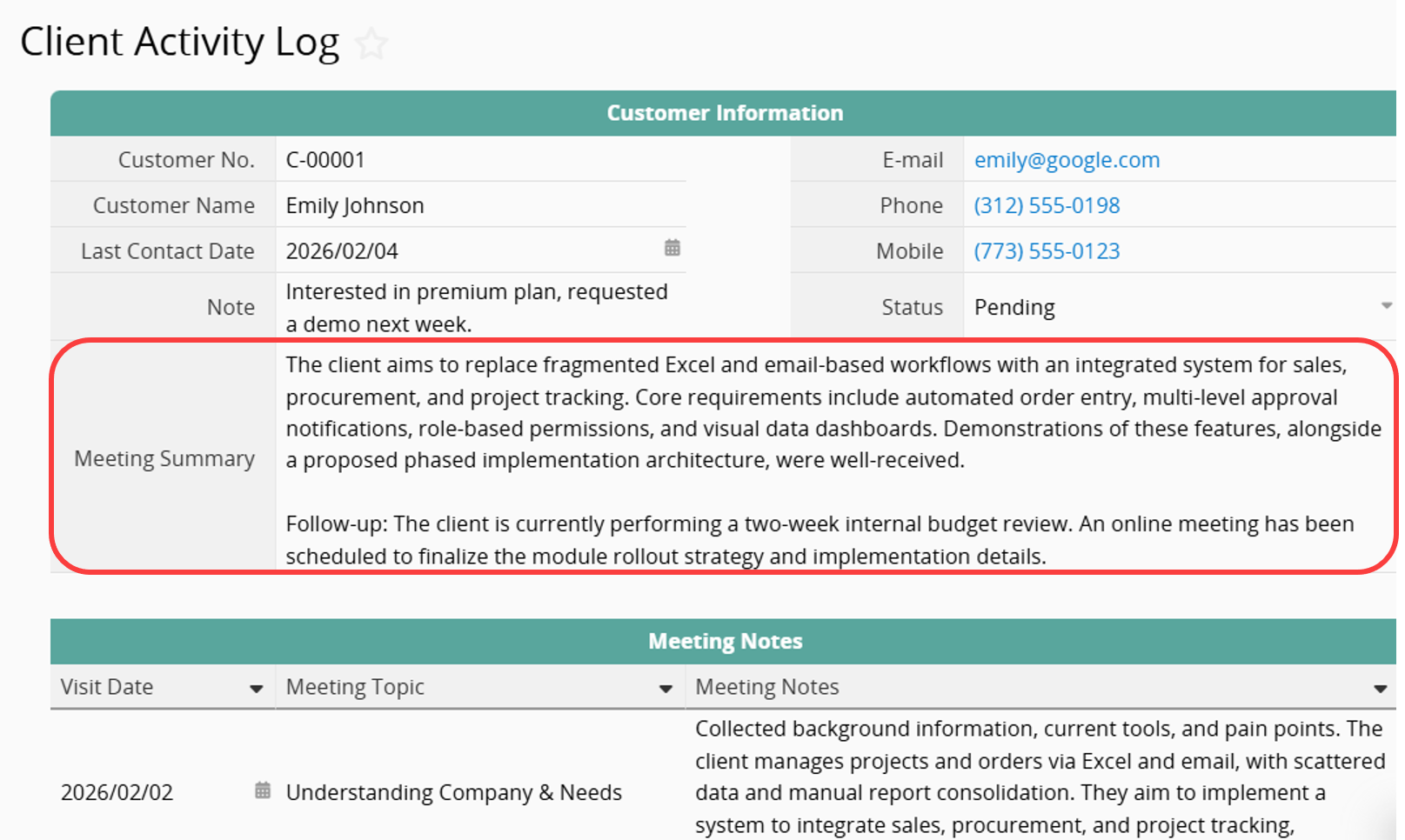
Example: Ask Ragic AI to generate a summary of no more than 150 words in the "Meeting Summary" field based on the "Meeting Notes" Subtable in the "Client Activity Log" sheet. The summary should include customer requirements and key follow-up points.
After saving, Ragic AI will automatically summarize the "Meeting Notes" and populate the designated field.
Automatically send notification emails based on specified conditions.
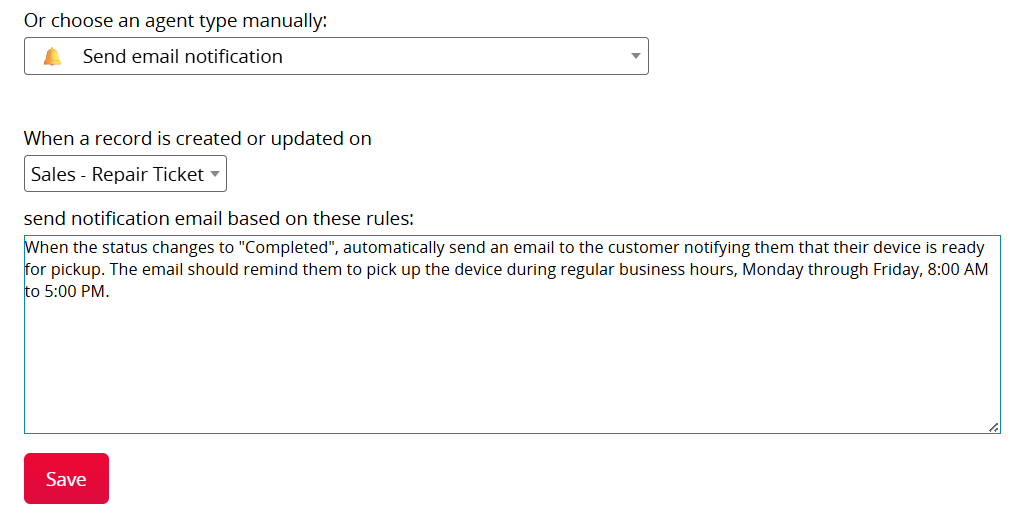
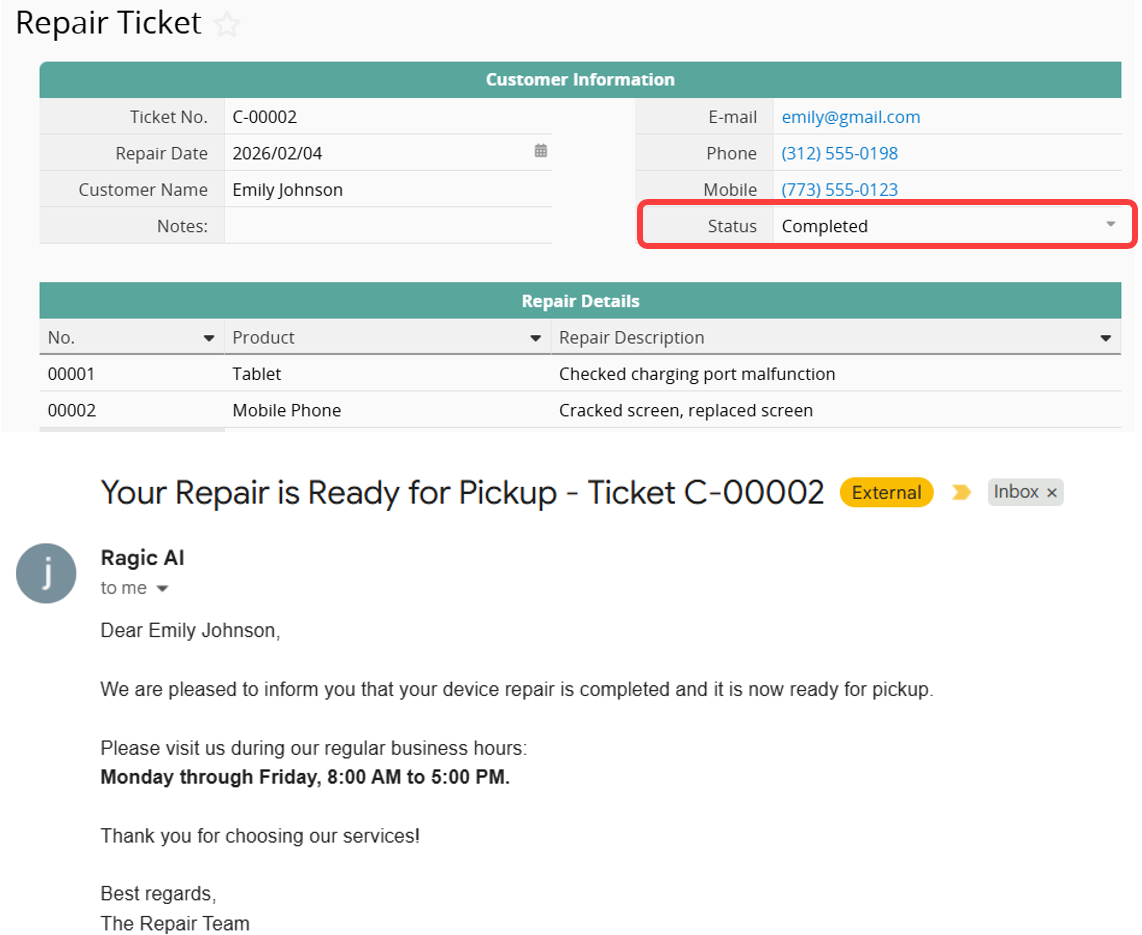
Example: When the status of a "Repair Ticket" changes to "Completed", automatically send an email to the customer notifying them that their device is ready for pickup. The email should remind them to pick up the device during regular business hours, Monday through Friday, 8:00 AM to 5:00 PM.
After saving, when the status is updated to "Completed", Ragic AI will automatically send the notification email.
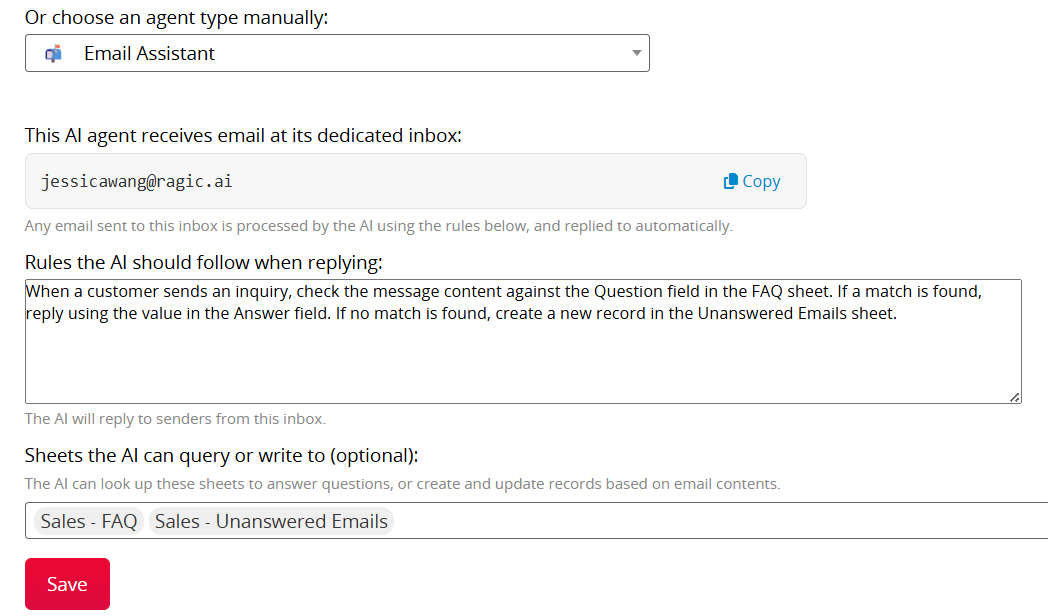
When the dedicated email address receives a message (for example, if your Account Name is example, the email address is example@ragic.ai), Ragic AI can automatically compose a reply based on defined rules.
Example: When a customer sends an inquiry, check the message content against the "Question" field in the "FAQ" sheet. If a match is found, reply using the value in the "Answer" field. If no match is found, create a new record in the "Unanswered Emails" sheet.
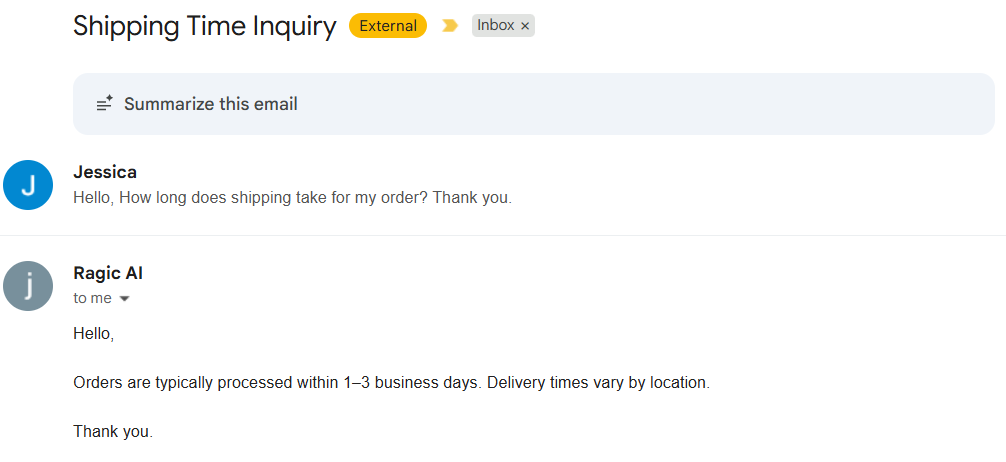
After saving, when a customer emails a question listed in the "FAQ", Ragic AI will automatically send the matching reply.
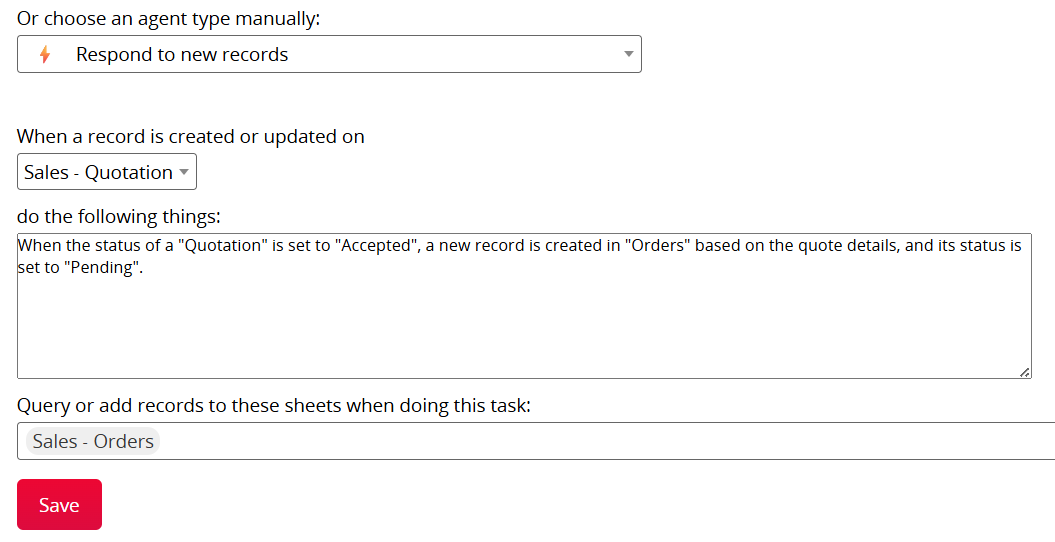
Automatically execute specified actions when records are created or modified.
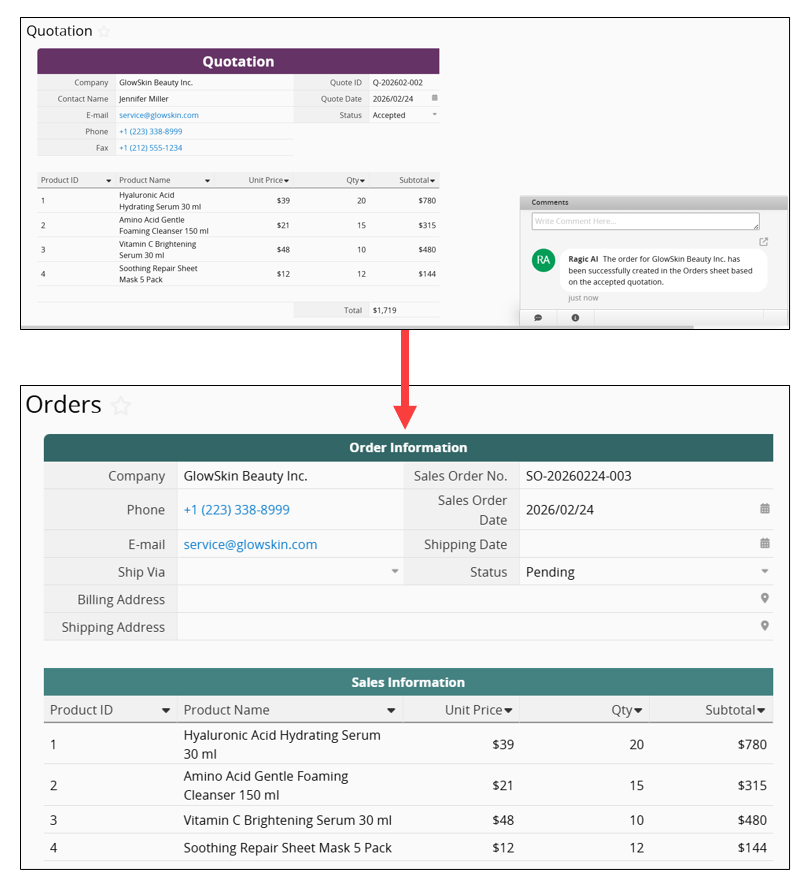
Example: When the status of a "Quotation" is set to "Accepted", a new record is created in "Orders" based on the quote details, and its status is set to "Pending".
After saving, when the "Quotation" status is updated to "Accepted", the system automatically creates the corresponding order.
Once configured, an Action Button is automatically added to the sheet. Clicking it on a record triggers Ragic AI to run the specified task, which is useful when you want the user to decide when it should run.
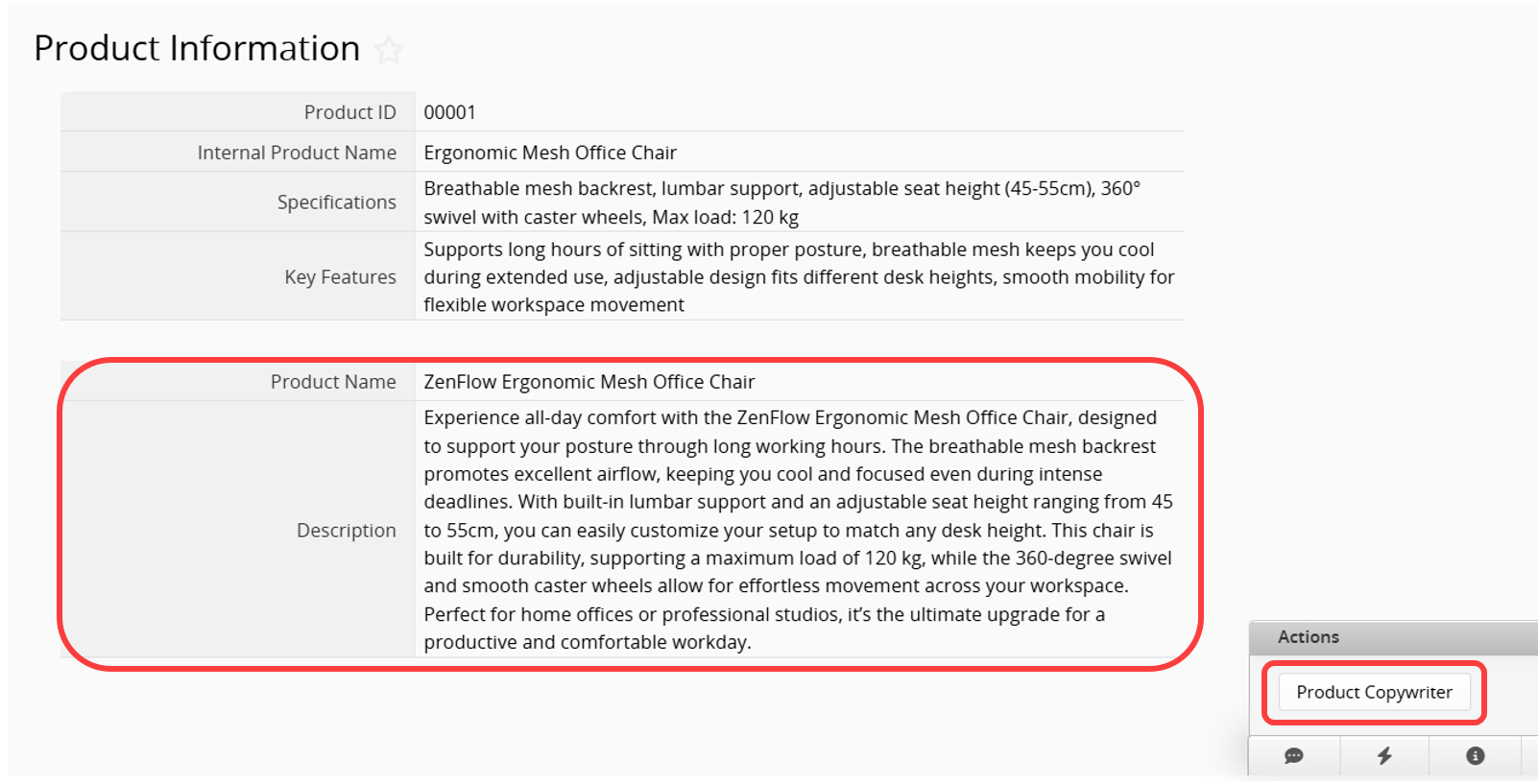
Example: Ask Ragic AI to add a "Product Copywriter" Action Button to the "Product Information" sheet. When clicked, it should generate a "Product Name" and "Description" based on the record's "Internal Product Name", "Specifications", and "Key Features" fields.
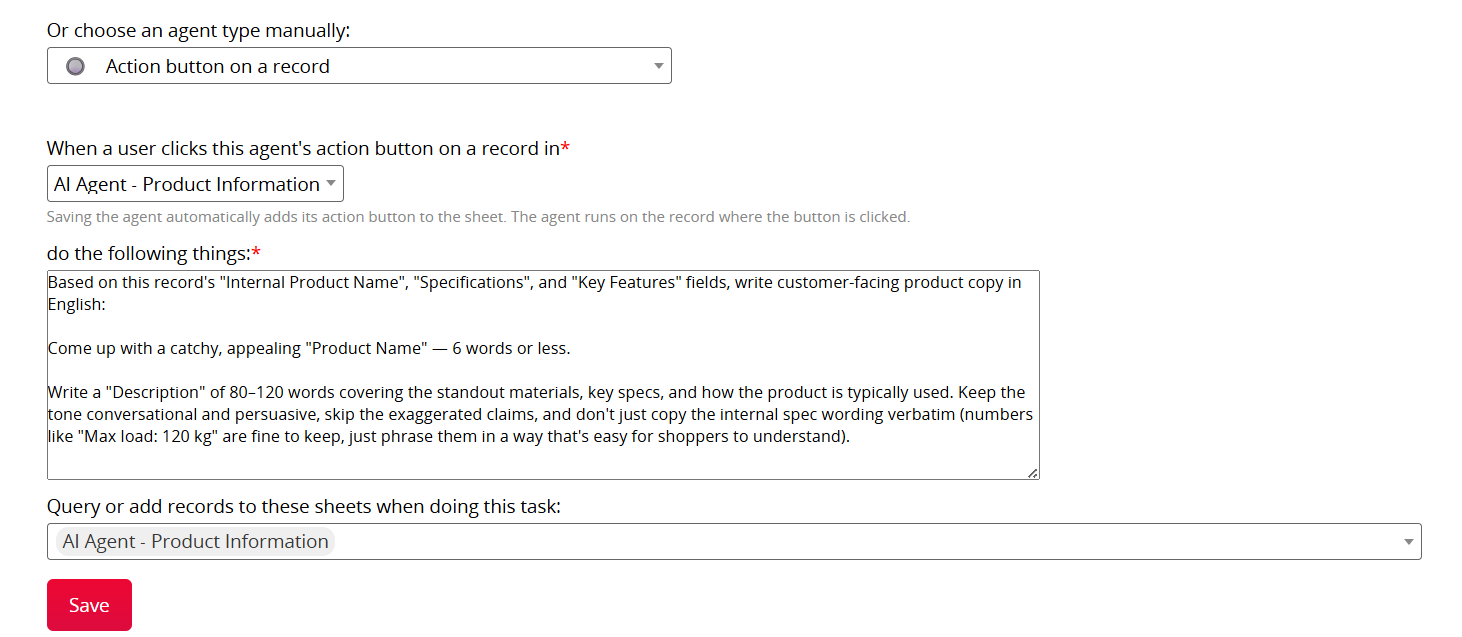
After saving, Ragic AI will automatically add the Action Button to the "Product Information" sheet. From then on, clicking this button on any record will prompt Ragic AI to generate the "Product Name" and "Description" based on the record's field values.
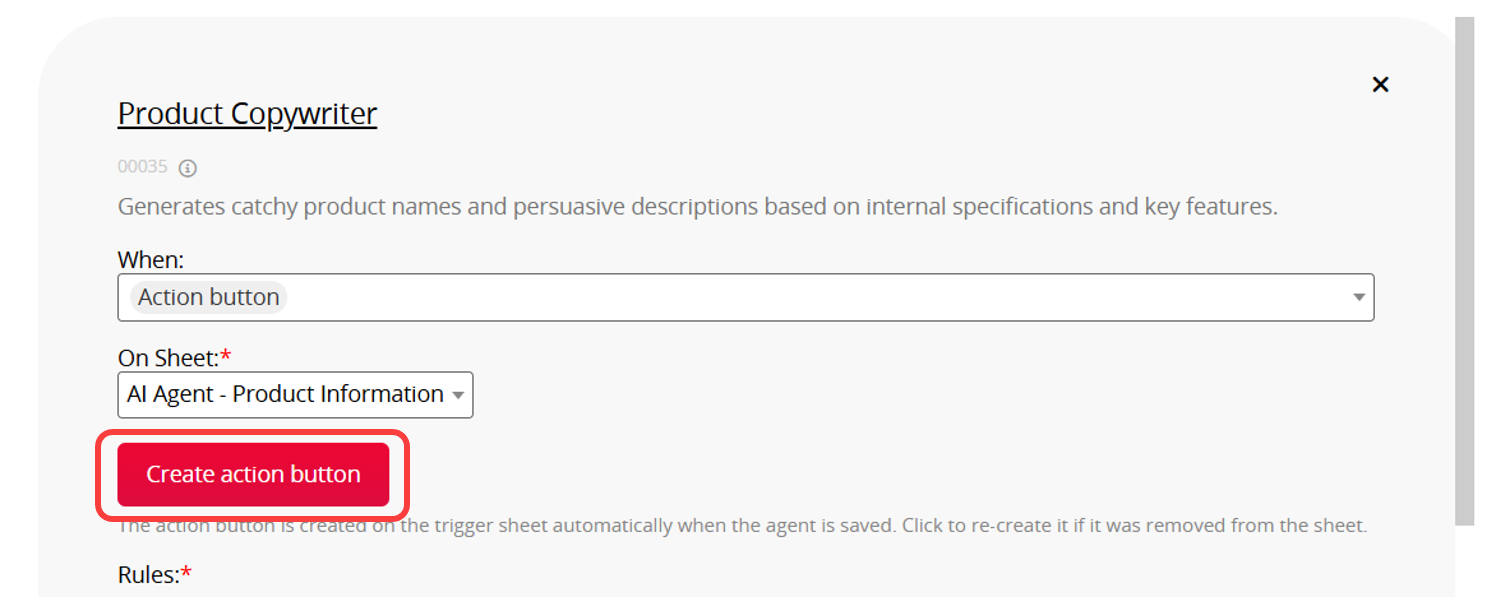
This Action Button also supports additional settings or can be removed in Design Mode. If accidentally deleted, go back to the AI Agent settings and click Create action button to restore it; removing the Agent task will also remove the corresponding Action Button.
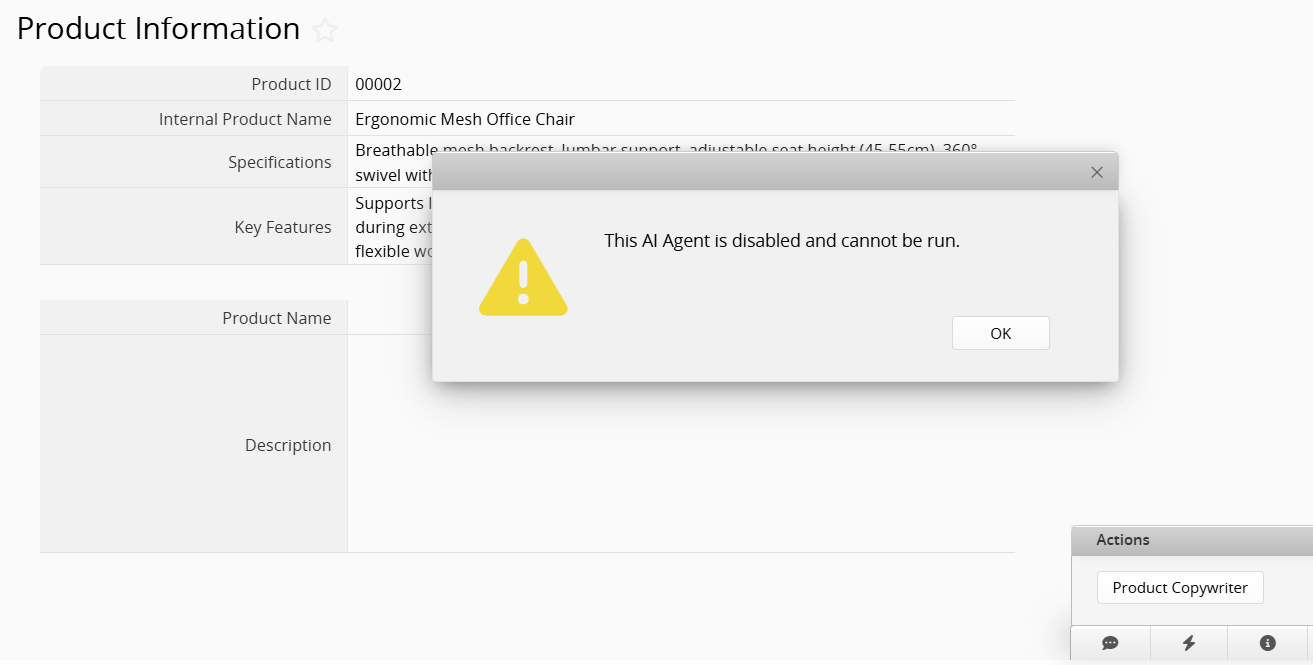
When an Agent is disabled, its Action Button will remain on the sheet. Clicking it will show a message indicating that the Agent has been disabled.
You can configure tasks to run at fixed times, for example, daily, weekly, or at a specified time. This can be used to periodically organize information, send notifications, or perform routine checks.
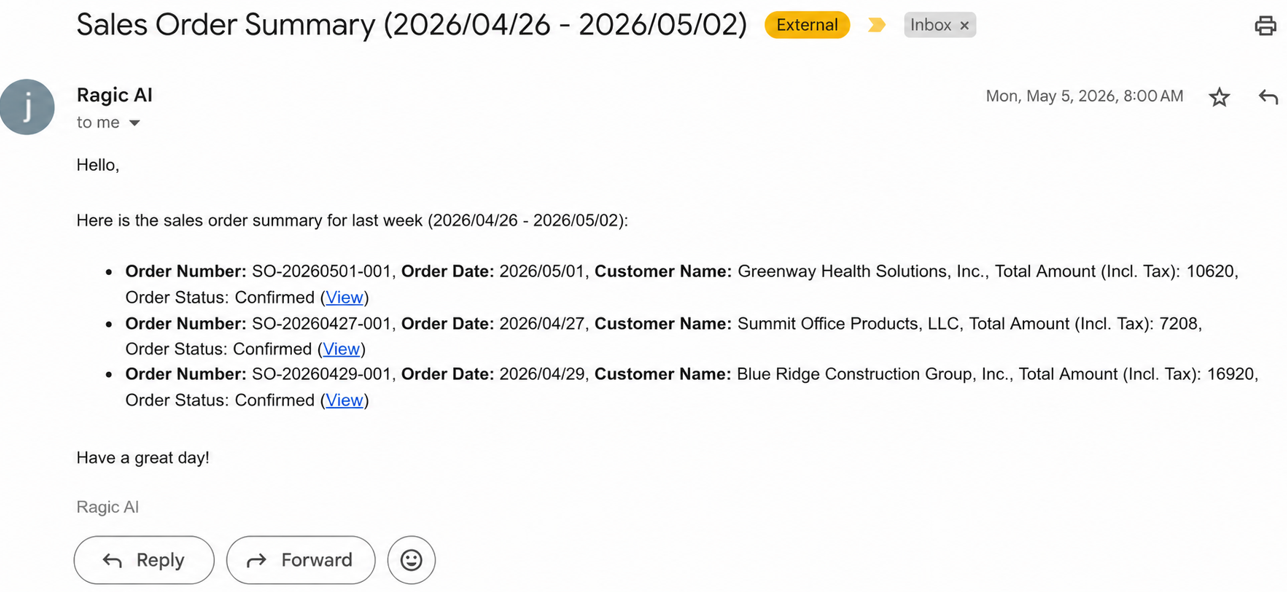
Example: Every Monday at 8:00 AM, query orders added to the "Sales Orders" sheet during the previous week, generate an order summary, and send it to the sales manager.
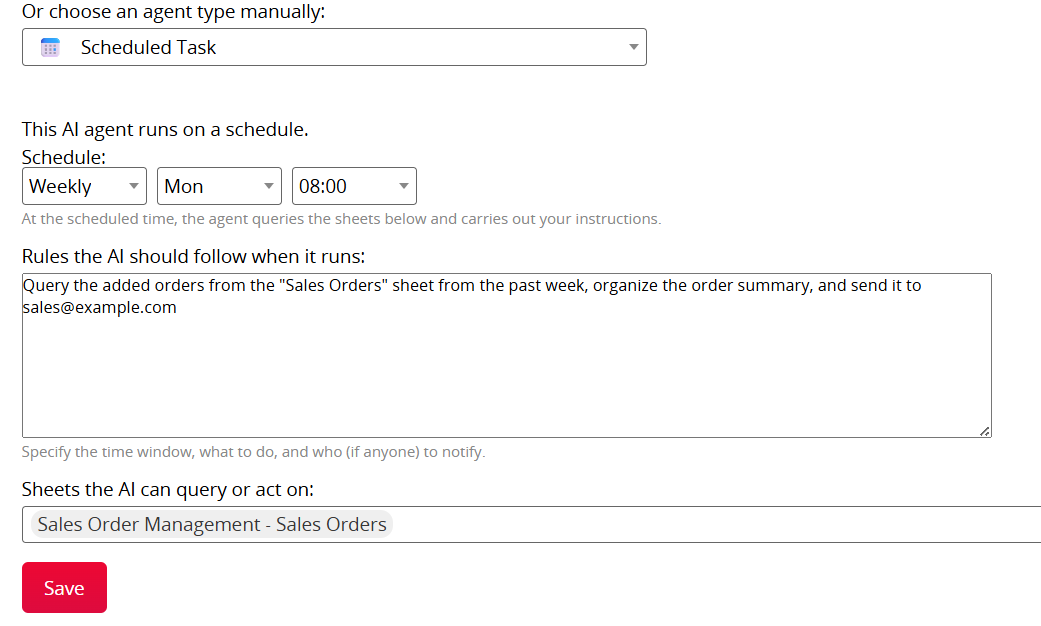
After saving, the system will automatically organize the related data and send the summary according to the configured schedule.
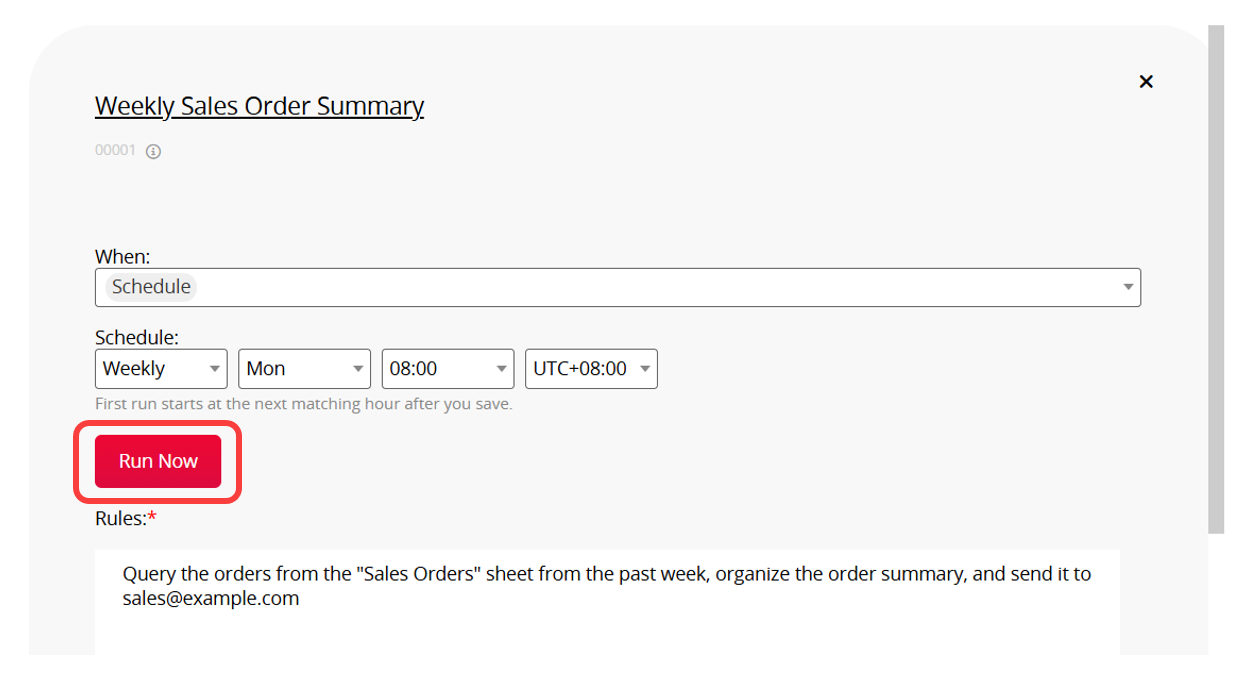
You can also click Run Now on the settings page to run the task immediately, without waiting for the schedule.
The system provides Agent templates that can be applied directly to quickly create common AI automation workflows.
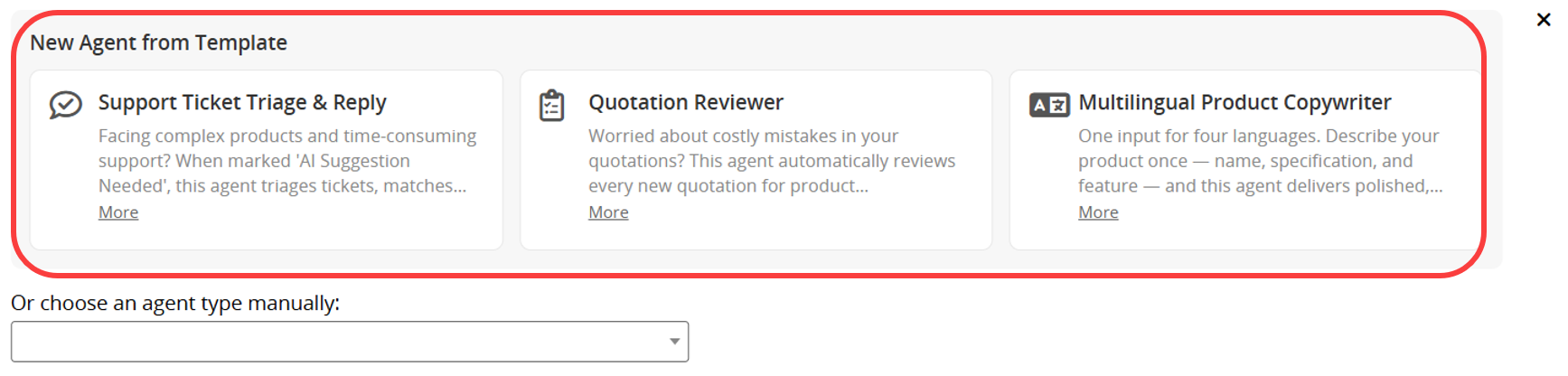
After selecting a template, you can use the template sheets (which will be automatically installed after saving) or select your own sheets. You can also customize the AI instructions and other settings as needed.
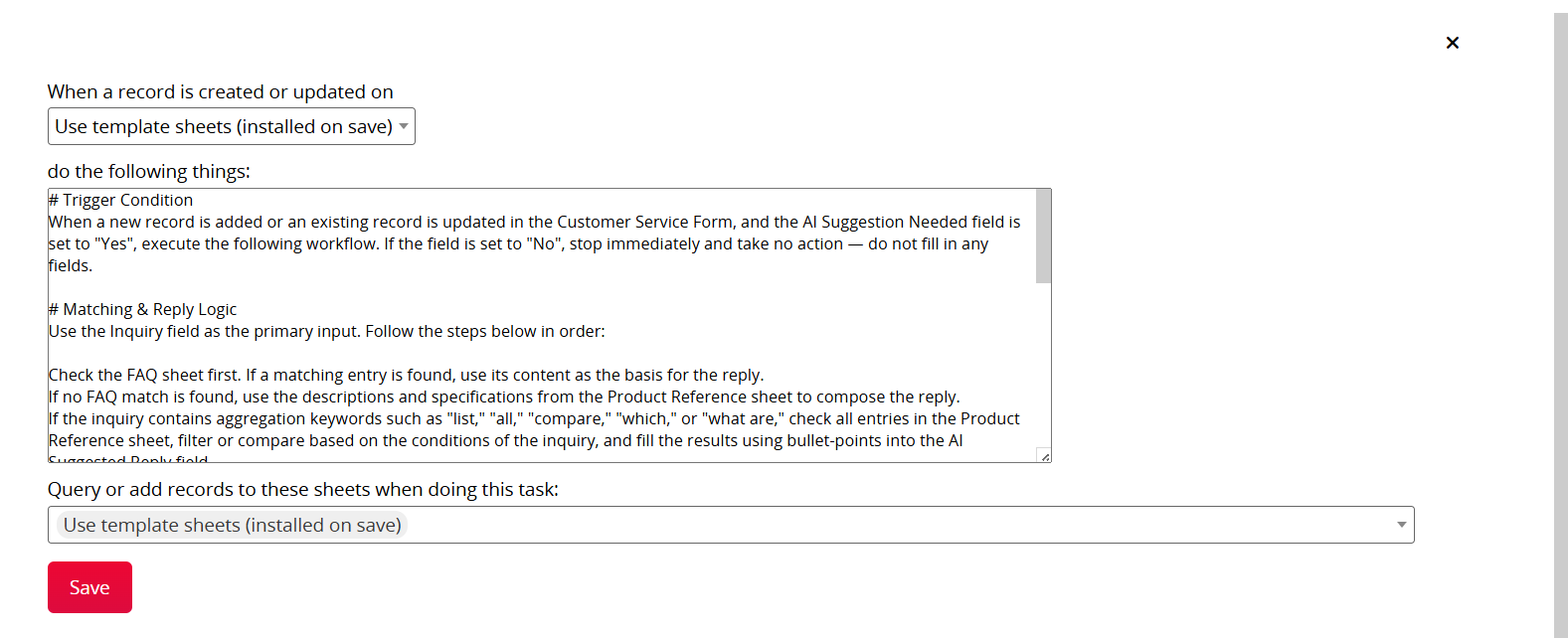
For more information about Agent templates and how to use them, please refer to the Learning Center.
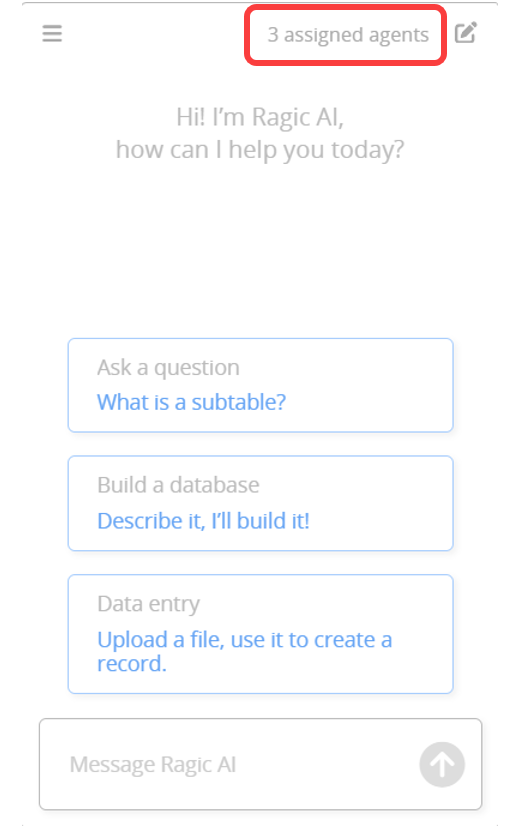
In the upper-right corner of the Ragic AI window, you can see the number of agents currently assigned.
Click to view the saved AI Agent list and related information for each Agent, including trigger events, actions, and related sheets. You can also click the sheet directly for quick access.
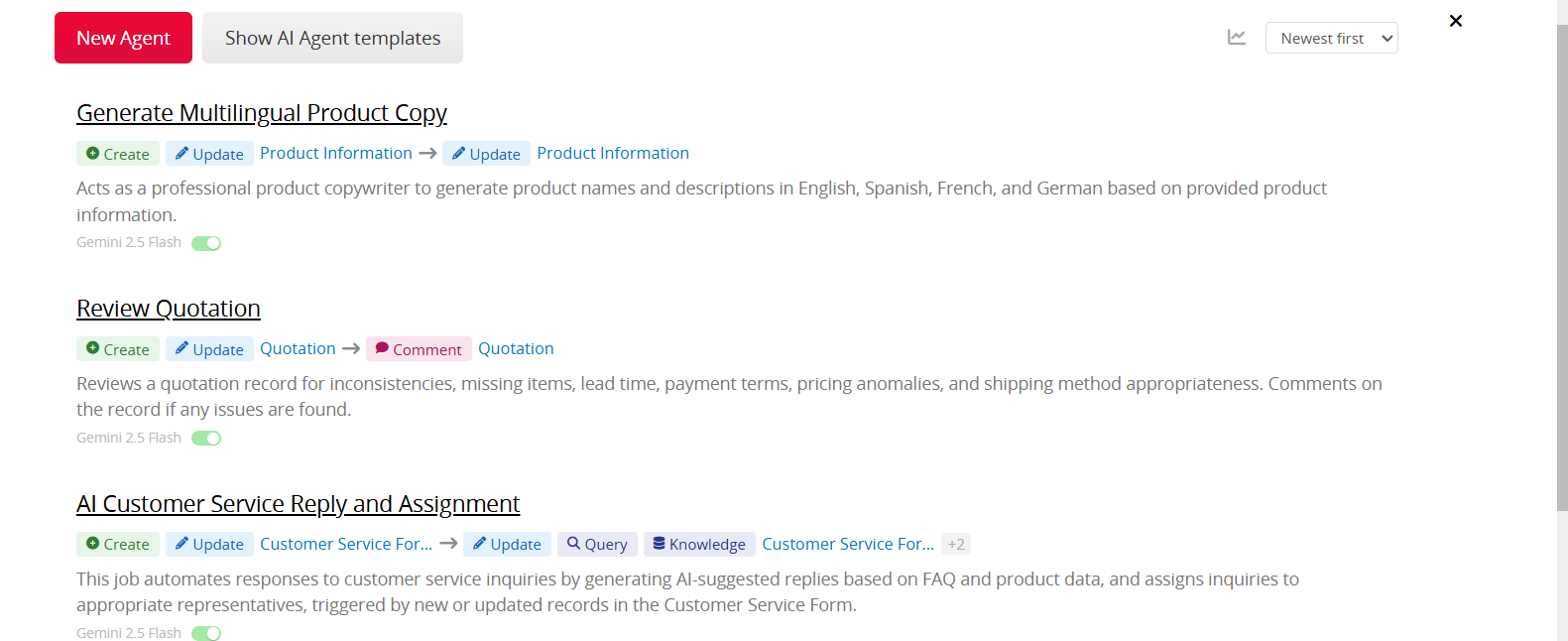
After creating an Agent, the system will automatically generate a name. You can click the pencil icon next to the name to customize it, or rename the Agent in the detailed settings page.
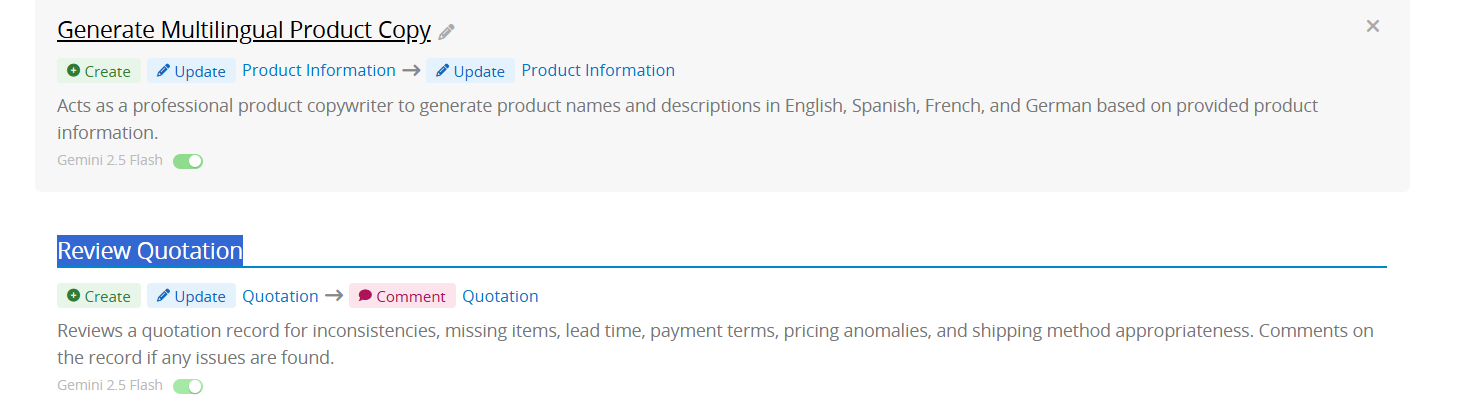
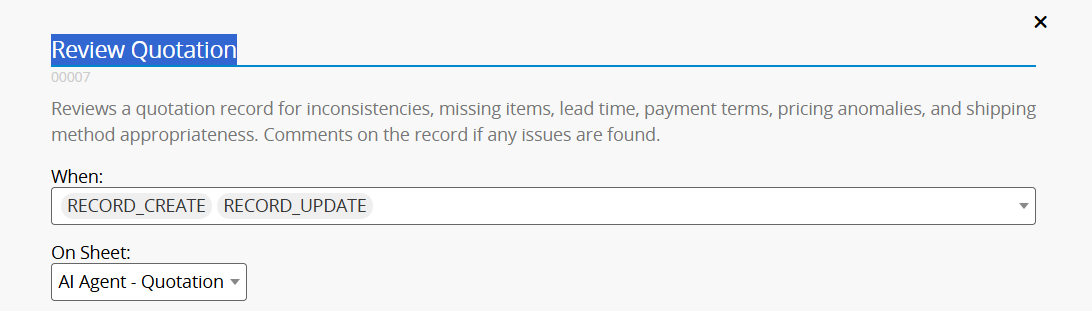
To disable an Agent, use the toggle switch below the Agent card.

To remove an Agent, click the X in the upper right corner of the item.

A sorting menu is available in the upper right corner, allowing you to sort Agents by creation time, name, or type.

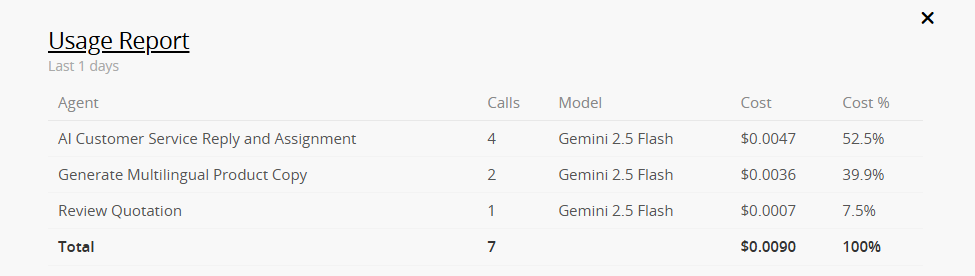
Click the  icon in the upper right corner to view the Agent usage report for the past 30 days, including call counts and usage costs. This helps you monitor AI Usage and optimize Agent settings, for example, by changing models or modifying rules.

Click an individual agent to edit the following settings:
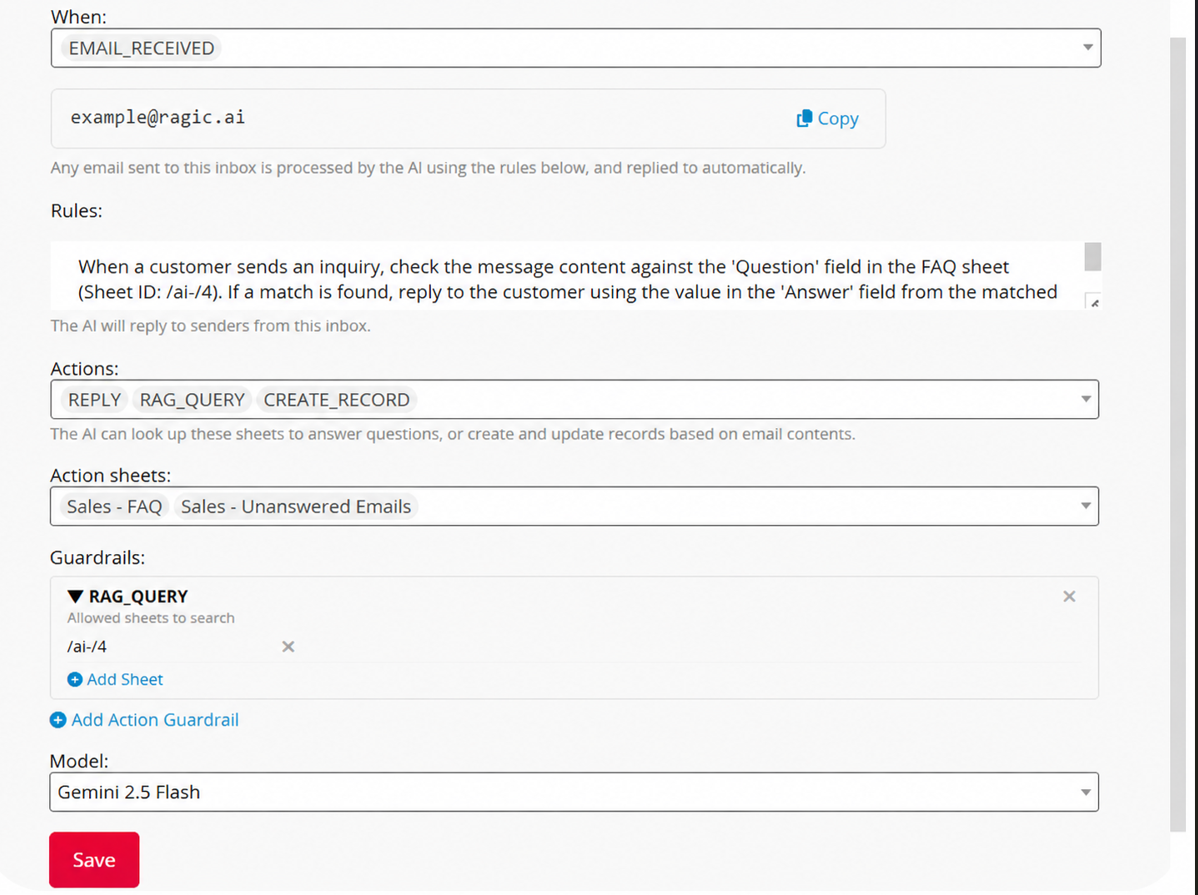
When (Trigger Events): Determine when to start the AI Agent. The following trigger events are available:
| Trigger Event | Description |
|---|---|
| RECORD_CREATE | Triggered when a new record is created. |
| RECORD_UPDATE | Triggered when an existing record is updated. |
| RECORD_COMMENT | Triggered when a comment is added to a record. |
| EMAIL_RECEIVED | Triggered when an Email is received. |
| MENTION | Triggered when mentioned by a user using @. |
| SCHEDULED | Triggered automatically at the specified time. |
On Sheet (Trigger Sheet): Select the sheet for the trigger event. Not required for some trigger events.
If the sheet hasShared Views, you can set the AI Agent to trigger only when records matching specific Shared Views are created or updated.
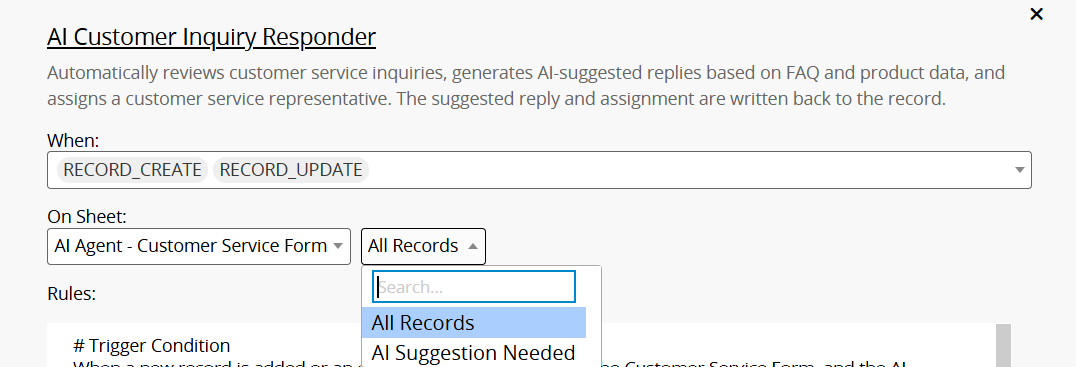
Rules: Define the tasks, conditions, and instructions for the AI Agent. Describe the expected behavior as clearly as possible.
Actions: Select the actions the AI Agent can perform. The following actions are available:
| Action | Description |
|---|---|
| REPLY | Generate responses such as replying to Emails, comments, or messages. Responses will be automatically sent through the appropriate channel based on the message source. |
| RAG_QUERY | Search the sheet for semantically related data. |
| CREATE_RECORD | Create a new record. |
| MODIFY_RECORD | Modify specified records or records selected by the AI. |
| ADD_COMMENT | Add a comment to a record. |
| QUERY_SHEET | Search sheet data based on field conditions. |
| SEND_EMAIL | Automatically send Emails. |
| URL_CALL | Call the specified URL and retrieve the response. |
| PDF_GEN | Edit content and generate PDF documents. |
| EXECUTE_ACTION_BUTTON | Execute an Action Button in the sheet. |
Action Sheets: Select the sheets the AI Agent can access and use when executing tasks.
Guardrails: Configure what the AI Agent is allowed to access and modify, for example, editable fields, Email recipients, or accessible sheets.
Model: Select the AI model used by this agent.
The default model is Gemini 2.5 Flash. Different models vary in usage cost and reasoning capability. Choose a suitable model based on task complexity, response quality requirements, and usage budget. Please refer to the table below:
| Model | Recommended Use Cases | Usage Level | Reasoning Capability |
|---|---|---|---|
| Gemini | |||
| Gemini 3.1 Flash Lite | Simple notifications, lightweight record update actions, and simple scheduled tasks | ● | ● |
| Gemini 3 Flash | Email assistant, field auto-fill, daily notifications, and automation tasks | ●● | ●● |
| Gemini 3.1 Pro | Complex AI Agent scenarios, multimedia content analysis, and advanced multi-step scheduled tasks | ●●●● | ●●●●● |
| Gemini 2.5 Flash Lite | Simple notifications, lightweight record update actions, and simple scheduled tasks | ● | ● |
| Gemini 2.5 Flash | Email assistant, general notifications, and daily automation tasks | ●● | ●● |
| Gemini 2.5 Pro | Suitable for most AI Agent scenarios, especially multimedia content and advanced scheduled analysis | ●●●● | ●●●●● |
| GPT | |||
| GPT-4o Mini | Simple record update actions and lightweight scheduled notifications | ●● | ●● |
| GPT-5 Nano | Simple entry validation, responding to record updates, and simple scheduled tasks | ● | ● |
| GPT-5 Mini | Input validation, field auto-fill, and general scheduled tasks | ●● | ●● |
| GPT-5.1 | Field auto-fill, email notifications, and mid-complexity record update actions | ●●● | ●●● |
| GPT-5.2 | Suitable for most AI Agent scenarios, especially complex workflows and critical tasks | ●●●● | ●●●●● |
| GPT-5.4 | Complex email assistant, multi-step record updates, and scheduled analysis tasks | ●●●●● | ●●●●● |
| GPT-5.5 | High-complexity full-range Agent tasks requiring deep reasoning for field auto-fill and workflow decisions | ●●●●●● | ●●●●●● |
| Claude | |||
| Claude 3.5 Haiku | Simple email notifications, basic input validation, and simple scheduled tasks | ● | ● |
| Claude Haiku 4.5 | Simple email notifications, basic field auto-fill, and simple scheduled tasks | ●● | ● |
| Claude Sonnet 4.6 | Email assistant with auto-reply, composing notification content, and general workflow automation | ●●●● | ●●●● |
| Claude Opus 4.8 | Complex email assistant, long-form field content generation, and advanced multi-step workflow analysis | ●●●●●● | ●●●●●● |
 Thank you for your valuable feedback!
